Create and Use a Popup
Popups are frequently used to ask for end-user input or to present information. This provides a better experience to end-users because they are kept in context while entering the input.
In mobile apps, use a popup as follows:
- Drag the Popup widget to the screen;
- Add a variable of Boolean type to the screen to control the popup visibility (you can use it to show or hide the popup);
- Set the Show Popup property with the variable. This will effectively toggle the popup according to the variable value;
- Implement logic in the screen to display the popup by assigning
Trueto the variable; - Implement the popup content.
In web apps, use a popup as follows:
- Enclose the screen widget that opens the popup inside a link or button and name the link or button;
- Create a new screen for the popup. Set the layout of the screen to
LayoutsOther\Layout_Popup; - Back to the previous screen, set the link’s Destination to the popup screen;
- Use the search bar to look for the Popup_Editor and drag it to the screen;
- Set the Popup_Editor LinkOrButtonWidget property with the Id runtime property of the link or button;
- Choose (New Screen Action) in the Popup_Editor OnNotify Destination property. Since we don’t want to run any logic, leave the action’s flow empty;
- Implement the popup. To close it, use the
Popup_Editor_Closeaction.
Example in a Mobile App
In the GoOut application, to find, review, and rate places, we want to display a popup to end-users to confirm they want to send the review report when they think a review as abusive language.
- Open the ReviewInfo block, the block that displays the review details;
- Drag the popup widget to the screen next to the icon that once clicked;
- Add a local variable to the screen and name it
ShowConfirmReport. Set its data type asBoolean; - Set the Show Popup property of the popup to the new variable. The popup will be displayed according to the variable’s value;
- In the screen, add a
ReportOnClickclient action to show the popup (i.e. ShowConfirmReport isTrue); - Set this action to the OnClick event of the icon that reports the review;

- Create the popup content as the image below:

- To hide the popup after clicking one of its options, implement the logic to set the variable ShowConfirmReport to
Falsein the ReportOnClick action.
Example in a Web App
In the GoOutWeb application, to find, review, and rate places, each review can have photos associated. These photos are shown as thumbnails along with the review comments and a rating in a block called ReviewInfo. We want to preview the photo in its original size without losing the context of the place and the reviews.
- Open the ReviewInfo block;
- Enclose the image thumbnail in a link. Name the link as
ImageLink; - Create the Popup_PhotoPreview screen and set the layout of the screen to
LayoutsOther\Layout_Popup. This screen will display the popup content; - Add the PhotoId input parameter to get and display the image;
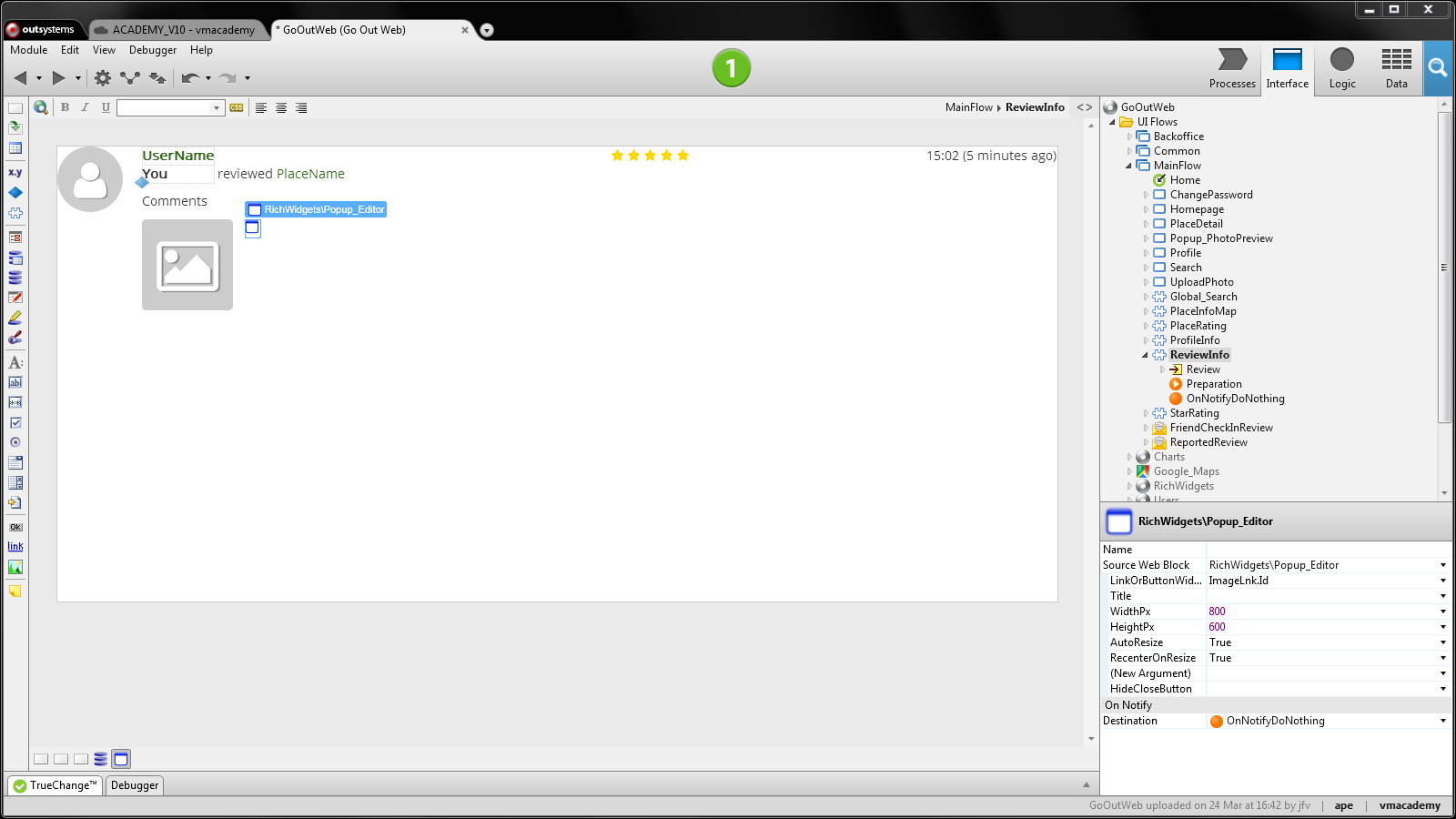
- Back to the ReviewInfo block, set the link’s Destination to Popup_PhotoPreview and define input parameter with the id of the photo do display in the popup;
- Use the search bar to look for the Popup_Editor block and drag it to the screen, next to the image;
- Set the Popup_Editor LinkOrButtonWidget property to
ImageLink.Id; - Choose (New Screen Action) in the Popup_Editor OnNotify Destination property. Since we don’t want to run logic in response to end-user interaction on the popup, leave the flow of the created action empty.
