Use Icons
Icons are small pictograms or symbols to help end-users identify functionality or information on screens. OutSystems provides a built-in collection of icons that can be used on the interface of applications.
To use an icon in mobile apps:
- Drag the Icon widget from the widgets toolbox and drop it onto the screen;
- Select the icon you want to use and click OK;
- Select the icon size.
To use an icon in web apps:
- In the Interface tab, go to Rich Widgets and drag an Icon block to the screen;
- Expand the dropdown list in the Name property and select the icon to display.
Example in a Mobile App
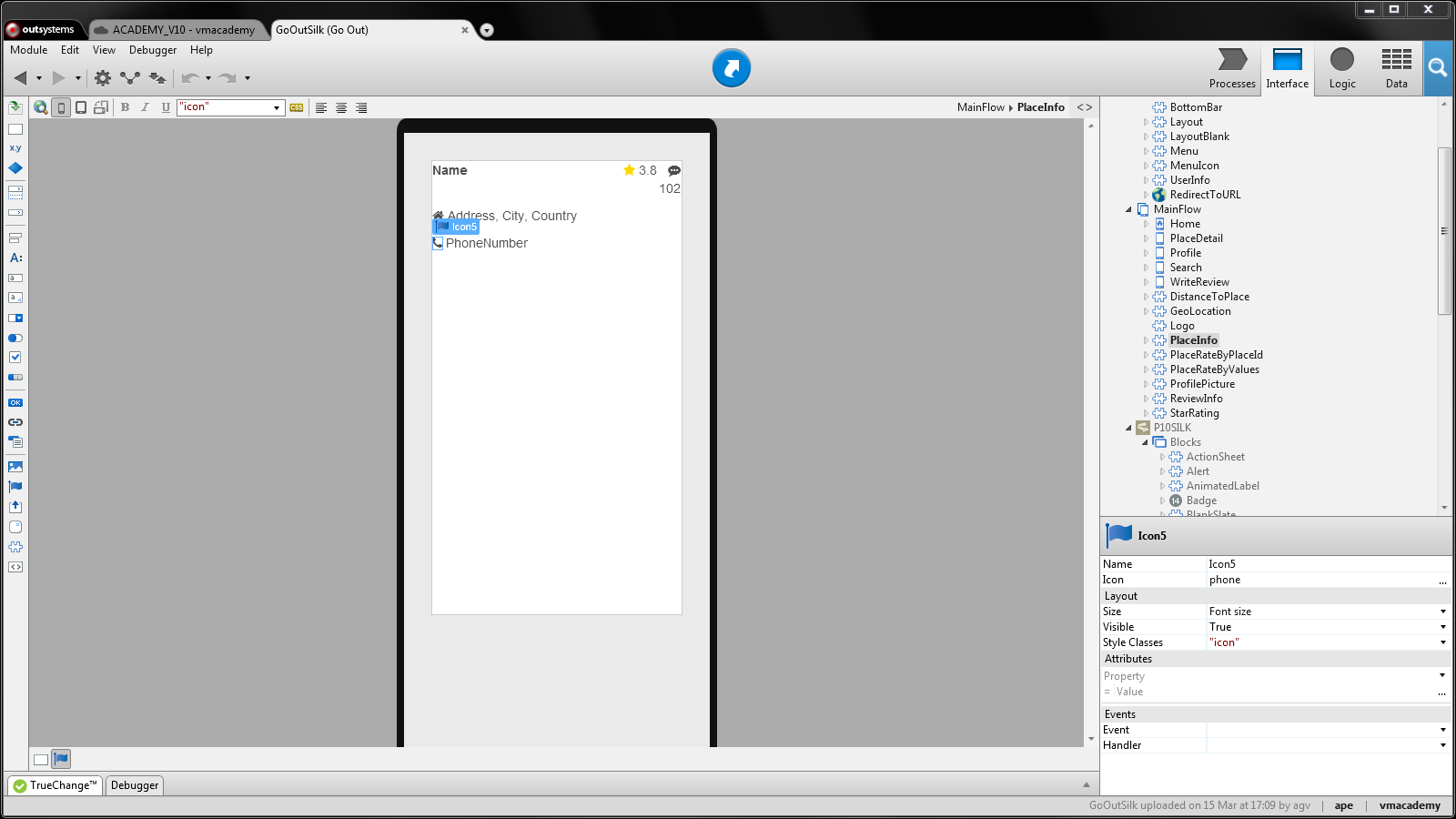
In GoOut, a mobile application for finding and reviewing places, we want to display icons next to the address and phone number of each place to make it easier for end-users to identify the category of each information.
To add the icons to the information of each place:
- Open the PlaceInfo block;
- Drag the Icon widget to the left of the expression displaying the address of the place;
- Select the home icon;
- Drag another Icon widget to the left of the expression displaying the phone number.
Example in a Web App
In the GoOutWeb application, the web version of the GoOut application, we want to display icons next to the phone number and website of a place to help end- users identify the information.
To add the icons to the place details:
- Open the PlaceInfoMap block;
- In the Interface tab, go to the Rich Widgets, and drag an Icon block to the left of the expression displaying the phone number;
- Choose the phone icon from the list in the Name property;
- Drag another Icon block to the left of the expression displaying the website;
- Expand the dropdown list in the Name property and select the external_link icon.
